Forums on Intune, SCCM, and Windows 11

Welcome to the forums. Register a free account today to become a member! Once signed in, you'll be able to participate on this site by adding your topics and posts, as well as connect with other members through your own private inbox!

SOLVED Security Scope "All instances of the objects that are related to the assigned security roles" greyed out for a user having Full Administrator role

Status
Not open for further replies.
Messages
23
Solutions
1
Reaction score
1
Points
3
Security Scope "All instances of the objects that are related to the assigned security roles" greyed out for a user having a Full Administrator role.
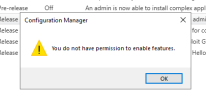
I tried to turn it on because I was unable to turn on a feature in the Administration->Overview->Updates and Services->Features and then clicked on "Turn On" to find a message that would say "You do not have permission to enable features".
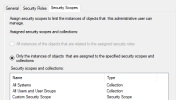
Greyed out permission.png


no permission.png
 
Solution
Here is what I tried and it worked. It helped me comply with the policy as well as correct the mistake that happened a long time back. The situation is as under:
An old IT tech installed the SCCM a long time back, apparently, earlier than 2015 using the domain administrator account.
Later a new service account, CMAdmin, was introduced by another IT tech to have all the actions with a specific identity and somehow comply with the new policy that no one can use the administrator account for any of such operational purposes.
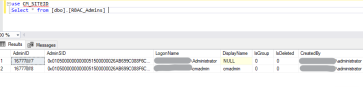
I first viewed the current data in the table by "Select [AdminSID] from [dbo].[RBAC_Admins]", took note of the adminIDs in the SQL Studio, and customised the following script to suit my needs to swap adminSID
Therefore, the...
There are two known workarounds if the option 'All Instances Of The Objects That Are Related To The Assigned Security Roles' is grayed out. (pictured above)
  • Log into Windows as the original user who installed the SCCM server. This is the only user able to change the Security Scope option.
  • If all else fails, Microsoft advises rebuilding your SCCM environment.
 
If you have MS Support I would contact them before rebuilding your site server.
 
Thanks for the responses. Just wondering if there is a way to launch the management console with the original user id. like run as kind of thing?
 
Assuming the user has not been deleted from AD then yes. Just logon with that account.
 
Here is what I tried and it worked. It helped me comply with the policy as well as correct the mistake that happened a long time back. The situation is as under:
An old IT tech installed the SCCM a long time back, apparently, earlier than 2015 using the domain administrator account.
Later a new service account, CMAdmin, was introduced by another IT tech to have all the actions with a specific identity and somehow comply with the new policy that no one can use the administrator account for any of such operational purposes.
I first viewed the current data in the table by "Select [AdminSID] from [dbo].[RBAC_Admins]", took note of the adminIDs in the SQL Studio, and customised the following script to suit my needs to swap adminSID
Therefore, the following had to be done:

USE [CM_SITEID] /*SWAP SID*/ GO DECLARE @NEWSID varbinary(85) DECLARE @OLDSID varbinary(85) SET @NEWSID = (Select * from [dbo].[RBAC_Admins] WHERE [AdminID] = 16777**8) /*get sid of the new user that SCCMmust use, which is domain\cmadmin*/ SET @OLDSID = (Select [AdminSID] from [dbo].[RBAC_Admins] WHERE [AdminID] = 16777**7) /*get sid of the user that originally installed and configured SCCM with, that is domain\administrator */ UPDATE [dbo].[RBAC_Admins] SET [AdminSID] = CONVERT(varbinary(85), @NEWSID, 1) WHERE [AdminID] = 16777**7 UPDATE [dbo].[RBAC_Admins] SET [AdminSID] = CONVERT(varbinary(85), @OLDSID, 1) WHERE [AdminID] = 16777**8 GO
 

Attachments

  • table data.png
    table data.png
    15.5 KB · Views: 22
Last edited:
Solution
Status
Not open for further replies.
Back
Top