Forums on Intune, SCCM, and Windows 11

Welcome to the forums. Register a free account today to become a member! Once signed in, you'll be able to participate on this site by adding your topics and posts, as well as connect with other members through your own private inbox!

SOLVED SCCM CMG not accepting Web Server Certificate (The password for the certificate is not correct)

  • Thread starter Thread starter B.Ramos
  • Start date Start date
  • Replies Replies 2
  • Views Views 9K
Status
Not open for further replies.

B.Ramos

New Member
Messages
2
Solutions
1
Reaction score
0
Points
1
Hi Guys,

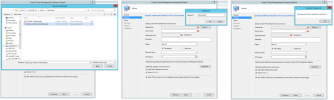
I am having a strange issue when trying to upload a web server certificate from a Public CA (Sectigo) in .PFX format to SCCM Cloud Management Gateway. When I try to do so. I am getting the following error message "The password for the certificate is not correct".

I have already tested the password and even installed the .PFX into the SCCM server computer certificate store by using the very same password. However, when I try to import it into CMG - I am always getting the same error.

Another thing I have tried was to issue a Web Server Certificate from our Internal Domain CA with same exact properties as the one from the Public CA, and this one was accepted without any issues by CMG. However, I can't really understand why or maybe my brain is just too tired right now. :D

I have attached a screenshot from the error in case anyone would have had the same issue or can point me in the right direction.
I also have a support call opened with MS at the moment, so hoping they may be able to provide some answers.

Many thanks in advance to everyone for the help!
 

Attachments

  • SCCM CMG Azure Service Setup - Certificate Error.png
    SCCM CMG Azure Service Setup - Certificate Error.png
    512 KB · Views: 24
Solution
I have this sorted now - For those who run into this issue, check the Crypto Provider of your SSL/TLS Certificate that you are trying to use with CMG.

I had to convert the certificate Crypto Provider from “Microsoft Software Key Storage Provider” to “Microsoft RSA SChannel Cryptographic Provider”. Then, I exported the .PFX again and was able to successfully import it for use with our Cloud Management Gateway service.

You can see steps I’ve taken to do so, below. Please, note that I have intentionally hidden some of the outputs for security reasons.

1. To check certificate properties, launch PowerShell in admin mode and run the command:

certutil -store my SubjectName

Example...
I have this sorted now - For those who run into this issue, check the Crypto Provider of your SSL/TLS Certificate that you are trying to use with CMG.

I had to convert the certificate Crypto Provider from “Microsoft Software Key Storage Provider” to “Microsoft RSA SChannel Cryptographic Provider”. Then, I exported the .PFX again and was able to successfully import it for use with our Cloud Management Gateway service.

You can see steps I’ve taken to do so, below. Please, note that I have intentionally hidden some of the outputs for security reasons.

1. To check certificate properties, launch PowerShell in admin mode and run the command:

certutil -store my SubjectName

Example:
Certutil -store my *.mydomain.com
================ Certificate ================
Issuer: CN=Sectigo RSA Domain Validation Secure Server CA, O=Sectigo Limited, L=Salford, S=Greater Manchester, C=GB
Subject: CN=*.mydomain.com
Provider = Microsoft Software Key Storage Provider
Encryption test passed

2. Export certificate to .PFX file with private key and entire certificate chain via MMC from computer certificate store).

3. Copy the exported .PFX file to a different computer with newer OS (e.g.: Windows 10 and later / Windows Server 2016 and later).

NOTE: Not sure if this really matters, but I couldn’t perform the conversion part (STEP 4) while trying to do it on a Windows Server 2012 R2 as it kept saying the operation was not supported.

4. To import the .PFX with private key while also converting the Crypto Provider to Microsoft RSA SChannel Cryptographic Provider, launch PowerShell in admin mode and run the following command:

certutil -csp "Microsoft RSA SChannel Cryptographic Provider" -importpfx Path\FileName.pfx

Example:
PS C:\TLS_Certificates> certutil -csp "Microsoft RSA SChannel Cryptographic Provider" -importpfx .\FileName.pfx
Enter PFX password:
Certificate "CertName - SSL Wildcard Certificate" added to store.
certUtil: -importPFX command completed successfully.


5. To import the .PFX with private key while also converting the Cryptographic Provider to Microsoft RSA SChannel Cryptographic Provider, run the following command on PowerShell console in admin mode:

certutil -csp "Microsoft RSA SChannel Cryptographic Provider" -importpfx Path\FileName.pfx

6. You can verify that the certificate cryptographic provider has been successfully change by running the following command in the PowerShell console:

certutil -store my SubjectName

Example:
Certutil -store my *.mydomain.com
================ Certificate ================
Issuer: CN=Sectigo RSA Domain Validation Secure Server CA, O=Sectigo Limited, L=Salford, S=Greater Manchester, C=GB
Subject: CN=*.mydomain.com
Provider = Microsoft RSA SChannel Cryptographic Provider
Encryption test passed

7. Finally, export the certificate to .PFX file with private key and entire certificate chain via MMC (certificate manager snap-in for computer certificate store). You can now import this .PFX file for use with the Azure Cloud App service (SCCM CMG).
 
Solution
I have this sorted now - For those who run into this issue, check the Crypto Provider of your SSL/TLS Certificate that you are trying to use with CMG.

I had to convert the certificate Crypto Provider from “Microsoft Software Key Storage Provider” to “Microsoft RSA SChannel Cryptographic Provider”. Then, I exported the .PFX again and was able to successfully import it for use with our Cloud Management Gateway service.

You can see steps I’ve taken to do so, below. Please, note that I have intentionally hidden some of the outputs for security reasons.

1. To check certificate properties, launch PowerShell in admin mode and run the command:

certutil -store my SubjectName

Example:
Certutil -store my *.mydomain.com
================ Certificate ================
Issuer: CN=Sectigo RSA Domain Validation Secure Server CA, O=Sectigo Limited, L=Salford, S=Greater Manchester, C=GB
Subject: CN=*.mydomain.com
Provider = Microsoft Software Key Storage Provider
Encryption test passed

2. Export certificate to .PFX file with private key and entire certificate chain via MMC from computer certificate store).

3. Copy the exported .PFX file to a different computer with newer OS (e.g.: Windows 10 and later / Windows Server 2016 and later).

NOTE: Not sure if this really matters, but I couldn’t perform the conversion part (STEP 4) while trying to do it on a Windows Server 2012 R2 as it kept saying the operation was not supported.

4. To import the .PFX with private key while also converting the Crypto Provider to Microsoft RSA SChannel Cryptographic Provider, launch PowerShell in admin mode and run the following command:

certutil -csp "Microsoft RSA SChannel Cryptographic Provider" -importpfx Path\FileName.pfx

Example:
PS C:\TLS_Certificates> certutil -csp "Microsoft RSA SChannel Cryptographic Provider" -importpfx .\FileName.pfx
Enter PFX password:
Certificate "CertName - SSL Wildcard Certificate" added to store.
certUtil: -importPFX command completed successfully.


5. To import the .PFX with private key while also converting the Cryptographic Provider to Microsoft RSA SChannel Cryptographic Provider, run the following command on PowerShell console in admin mode:

certutil -csp "Microsoft RSA SChannel Cryptographic Provider" -importpfx Path\FileName.pfx

6. You can verify that the certificate cryptographic provider has been successfully change by running the following command in the PowerShell console:

certutil -store my SubjectName

Example:
Certutil -store my *.mydomain.com
================ Certificate ================
Issuer: CN=Sectigo RSA Domain Validation Secure Server CA, O=Sectigo Limited, L=Salford, S=Greater Manchester, C=GB
Subject: CN=*.mydomain.com
Provider = Microsoft RSA SChannel Cryptographic Provider
Encryption test passed

7. Finally, export the certificate to .PFX file with private key and entire certificate chain via MMC (certificate manager snap-in for computer certificate store). You can now import this .PFX file for use with the Azure Cloud App service (SCCM CMG).
I found another way: It is not possible to change the crypto provider when using a public certificate.
The solution is to start the MECM console as an admin. This is the quickest way
 
Status
Not open for further replies.

Forum statistics

Threads
7,131
Messages
27,848
Members
18,145
Latest member
Rothgar
Back
Top