Forums on Intune, SCCM, and Windows 11

Welcome to the forums. Register a free account today to become a member! Once signed in, you'll be able to participate on this site by adding your topics and posts, as well as connect with other members through your own private inbox!

PENDING Unable to push powershell script file via sccm

  • Thread starter Thread starter SagiVarma
  • Start date Start date
  • Replies Replies 16
  • Views Views 13K

SagiVarma

Member
Messages
15
Reaction score
0
Points
1
Hi All,

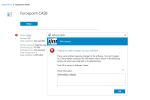
I am trying to execute powershell script file as application from SCCM. The file is shown in the software center of the client device and when I install the file it shows error as 0xFFFFD0000(-196608)
 

Attachments

  • Error.png
    Error.png
    32.2 KB · Views: 23
What exactly is in your Powershell script?
HI Garth,

I am installing Bit Glass Smart Agent
What exactly is in your Powershell script?
HI Garth,

Thanks for your reply. I have attached the powershell script and it is present in the SCCM server E drive which I want to push across all my workstations.
 

Attachments

Have you tested your script using the local system account?

Are you using a program or application to deploy this?
 
Have you tested your script using the local system account?

Are you using a program or application to deploy this?
Hi Garth,

We created an application.


Yes. I tested my script on a local system and it runs successfully and installs the msi file and exe file and creates bgptray.exe on the startup menu and replaces it with bgp tray agent shortcut.

I also tested the script when it is in the SCCM Server path location and executed in powershell with Network path defined and it ran successfully.
 
Have you tested your script using the local system account?

Are you using a program or application to deploy this?
Hi Garth,

We create an application in SCCM and trying to deploy to a test device.

Thanks & Regards,
Sagi Varma
 
Hi Garth,

We created an application.


Yes. I tested my script on a local system and it runs successfully and installs the msi file and exe file and creates bgptray.exe on the startup menu and replaces it with bgp tray agent shortcut.

I also tested the script when it is in the SCCM Server path location and executed in powershell with Network path defined and it ran successfully.
For 100% clarity, you use the Local System account. e.g. you use psexec to access the account and then run the script.

I'm unclear you last statement saying you deploy it with ConfigMgr and it was successful. If this is the case then what is the problem?
 
Hi Garth,

I opened the Powershell ISE window on the test device which is a windows 10 workstation and executed the script which worked fine. I created an application in SCCM for the script and when I deployed to the windows 10 workstation. the application is shown in the software center. when I run it from software center then the error comes as shown in my earlier screenshot.

Thanks & Regards,
Sagi Varma
 
Hi Garth,

I opened the Powershell ISE window on the test device which is a windows 10 workstation and executed the script which worked fine. I created an application in SCCM for the script and when I deployed to the windows 10 workstation. the application is shown in the software center. when I run it from software center then the error comes as shown in my earlier screenshot.

Thanks & Regards,
Sagi Varma
So that is NOT testing with the local system account. Please read the blog and use PSexec to access the local system account and test the script again.
 
Hi Garth,

The client's workstation does not have PsTools in it. Please note the powershell script is located on the SCCM server E drive which is a shared folder. I downloaded the PsTools and copied to C drive but I am unable to execute the psexec utility.
 
HI Garth,
My client provided me Domain account to use on the client workstation. I do not have local system account to execute the script.

Thanks & Regards,
Sagi Varma
 
HI Garth,
My client provided me Domain account to use on the client workstation. I do not have local system account to execute the script.

Thanks & Regards,
Sagi Varma
So, what you are saying is that you can't test the script in the same manor that ConfigMgr will execute it. You need to talk to your client about allowing you to solve this problem.

This goes to the first step of troubleshooting an application install. Does it work outside of ConfigMgr with the local system account. Until it passes this step, there is no point moving forward.
 
Hi Garth,

Thanks for your continuous support. I identified one of the powershell script line was not pointing to the required path for creating the bitglass agent tray shortcut location. I set it to the correct path and deployed the application to test device which is successful.

If I face any further issues I will get back to you.

Thanks & Regards,
Sagi Varma
 
Hi Garth,

There is one more request regarding this script. The shortcut icon should be copied to the Default profile start Menu on windows 10 and windows 11. By default, windows 10 default profile has start Menu under default profile but windows 11 does not have it.
Please suggest.

Thanks & regards,
Sagi varma
 
Hi Garth,

There is one more request regarding this script. The shortcut icon should be copied to the Default profile start Menu on windows 10 and windows 11. By default, windows 10 default profile has start Menu under default profile but windows 11 does not have it.
Please suggest.

Thanks & regards,
Sagi varma
Look at your environment variable. There will be one for the shared desktop.
 
try to add this two lines at the begginning of the script
Start-Process pwsh -Verb runAs
Set-ExecutionPolicy -ExecutionPolicy Bypass -Force -Verbose
 
Back
Top