Forums on Intune, SCCM, and Windows 11

Welcome to the forums. Register a free account today to become a member! Once signed in, you'll be able to participate on this site by adding your topics and posts, as well as connect with other members through your own private inbox!

SOLVED After SCCM OS Inplace upgrade unabel to open sccm console

Status
Not open for further replies.

venkateshcme_81

Active Member
Messages
28
Reaction score
0
Points
1
Dear Team,
we have upgrade the OS in our SCCM Server from 2012 R2 to 2019, after which we are unable to open the console.
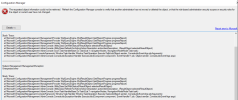
below is the error screen shot from a SmsAdminUI.log in case if you need any more logs plz do let me know Immediate help is highly appriceated

1677491881749.png


regards
 
Solution
I had the same issue you describe here. It took me over 10 hours of troubleshooting before finally finding the issue. Since it took me this long to find out, I decided to share it with you.

I upgraded all our SCCM servers from Windows Server 2012 R2 to Windows Server 2022 (via Windows Server 2019). After the upgrade, some of our SCCM admins started to complain that they were no longer able to use a remote SCCM management console to connect to SCCM.

The cause is that as part of the SCCM upgrade WMI permissions for the LOCAL group SMS Admins is deleted. Pooooffff, just gone.

After you upgrade the site server, or an instance of the SMS Provider, you can't connect with the Configuration Manager console. To work around this problem...
Please review the below logs as well,

SMSPROV.log - Do you see any connectivity error here?

CMUpdate.log - any pending installation?

It's also worth checking the Event Viewer log.

After restarting the service\device, try launching the console.
 
No Errors on SMSPROV.log & CMUpdate.log & SMSDBMON.log .....
But not Yet restarted the server will restart the server and will let you know the update.
mean while any other troubleshooting stemps plz....
 
Even after Server restart Same issue no errors in SMSPROV.log & CMUpdate.log & SMSDBMON.log an dcan only error in SmsAdminUI.log as shown and attached above....Immediate help is highly appriceated
 
As far as I know, if the prerequisites are fulfilled but there's still an issue on console launch, I suspect it is .NET issue.

But, please keep in mind that if you want to repair the console on the server, the best practise should be followed.
 
after doing " mofcomp.exe smsprov.mof " on SCCM Server now able top opent the console but unable to edit the task sequence below screen shot for your reference, WMI Service is running and tried after doing a restart of WMI also but no luck any help plz

1677594696737.png
 
unable to edit the task sequence after SCCM OS in place upgrde from 2012 R2 to 2019 below is the error..... any solution plz

Fail to create WMI object, unpexected.";
 
It appears that the recompiled mof file has broken something. Will you be able to restore the server image to its original state?

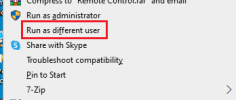
Can you use the Run as option to launch the shortcut with other credentials? If it is a user profile issue, it should launch; otherwise, corruption in system files or registries has occurred.

1677683011608.png
 
I had the same issue you describe here. It took me over 10 hours of troubleshooting before finally finding the issue. Since it took me this long to find out, I decided to share it with you.

I upgraded all our SCCM servers from Windows Server 2012 R2 to Windows Server 2022 (via Windows Server 2019). After the upgrade, some of our SCCM admins started to complain that they were no longer able to use a remote SCCM management console to connect to SCCM.

The cause is that as part of the SCCM upgrade WMI permissions for the LOCAL group SMS Admins is deleted. Pooooffff, just gone.

After you upgrade the site server, or an instance of the SMS Provider, you can't connect with the Configuration Manager console. To work around this problem, manually restore permissions for the SMS Admins group in WMI. Permissions must be set on the site server, and on each remote server that hosts an instance of the SMS Provider, in my case the CAS on all three primary site servers.
  1. On the applicable servers, open the Microsoft Management Console (MMC) and add the snap-in for WMI Control, and then select Local computer.
  2. In the MMC, open the Properties of WMI Control (Local) and select the Security tab.
  3. Expand the tree below Root, select the SMS node, and then choose Security. Make sure the SMS Admins group has the following permissions:
    • Enable Account
    • Remote Enable
  4. On the Security tab below the SMS node, select the site_<sitecode> node, and then choose Security. Make sure the SMS Admins group has the following permissions:
    • Execute Methods
    • Provider Write
    • Enable Account
    • Remote Enable
  5. Save the permissions to restore access for the Configuration Manager console.
Good luck! Hope this helps!
 
Solution
Status
Not open for further replies.
Back
Top