Forums on Intune, SCCM, and Windows 11

Welcome to the forums. Register a free account today to become a member! Once signed in, you'll be able to participate on this site by adding your topics and posts, as well as connect with other members through your own private inbox!

PENDING Software Distribution Problem - Package Set to Run when no user is logged in

Nilbog

Member
Messages
13
Reaction score
0
Points
1
Good Morning,

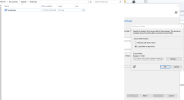
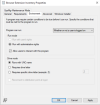
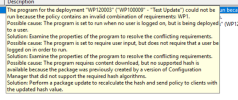
I created a package that is supposed to execute a command to a collection I created. I added 1 server to the collection for testing purposes. I verified the command executes properly using Powershell. Checking the Status Message Viewer for the Software Distribution Component for the Package, I get the attached error. I verified settings when I created package. Trying to push an update to a client. Any ideas?
 

Attachments

  • Deployment.png
    Deployment.png
    107.5 KB · Views: 6
From the screenshot that you've attached, you have deployed the program to install when no user is logged in. Can you check that part?
 
From the screenshot that you've attached, you have deployed the program to install when no user is logged in. Can you check that part?
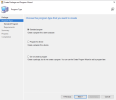
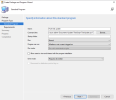
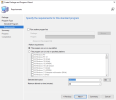
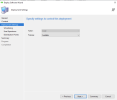
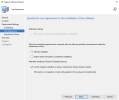
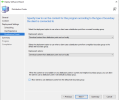
I've tried it with a user logged in, without a user logged in, and with or without a user logged in. I've attached some screenshots to give you a good idea of how I setup my package. Screenshot #1 is the location of the script as well as the source folder path I setup in the Package and Program Wizard. Screenshot #3 the command I entered is one that executes the powershell script I created. I verified it works. I selected "requires drive letter" for drive mode since the script is on the local C drive. After I create the package, I right-click on it and select "distribute content". I add the distribution point. After, I right-click the package and select deploy. I add the collection. For screenshot #5 I change the purpose to available. For screenshot #7 I changed the second Deployment Option to "Download content from distribution point and run locally" then clicked the checkbox at the bottom. That wraps up the process. Please let me know if I am doing anything wrong or where else I can look to see what is going wrong.
 

Attachments

  • 1.png
    1.png
    132.7 KB · Views: 28
  • 2.png
    2.png
    104.5 KB · Views: 28
  • 3.png
    3.png
    134.5 KB · Views: 23
  • 4.png
    4.png
    166.2 KB · Views: 25
  • 5.png
    5.png
    85 KB · Views: 21
  • 6.png
    6.png
    137.7 KB · Views: 16
  • 7.png
    7.png
    165.9 KB · Views: 24
First off your command line is trying to run from the full path of the source folder and not from the cache folder.
 
First off your command line is trying to run from the full path of the source folder and not from the cache folder.
Are you implying that I need to put the Powershell script in the "D:\ConfigurationManager\AdminConsole\Cache" folder and point the command to that?
Original command: C:\Windows\System32\WindowsPowerShell\v1.0\powershell.exe -executionpolicy bypass -file "C:\Users\<user folder>\Documents\Update\TestScript\TestUpdate.ps1"
Command using cache folder: C:\Windows\System32\WindowsPowerShell\v1.0\powershell.exe -executionpolicy bypass -file "D:\ConfigurationManager\AdminConsole\Cache\TestUpdate.ps1"
Let me know your thoughts. Also, will this fix the error I'm getting or is it an unrelated issue?
 
Are you implying that I need to put the Powershell script in the "D:\ConfigurationManager\AdminConsole\Cache" folder and point the command to that?
Original command: C:\Windows\System32\WindowsPowerShell\v1.0\powershell.exe -executionpolicy bypass -file "C:\Users\<user folder>\Documents\Update\TestScript\TestUpdate.ps1"
Command using cache folder: C:\Windows\System32\WindowsPowerShell\v1.0\powershell.exe -executionpolicy bypass -file "D:\ConfigurationManager\AdminConsole\Cache\TestUpdate.ps1"
Let me know your thoughts. Also, will this fix the error I'm getting or is it an unrelated issue?
No, your command line should be something like this. Notice that there is no path.

C:\Windows\System32\WindowsPowerShell\v1.0\powershell.exe -executionpolicy bypass -file ".\TestUpdate.ps1"

or even

powershell.exe -executionpolicy bypass -file ".\TestUpdate.ps1"
 
No, your command line should be something like this. Notice that there is no path.

C:\Windows\System32\WindowsPowerShell\v1.0\powershell.exe -executionpolicy bypass -file ".\TestUpdate.ps1"

or even

powershell.exe -executionpolicy bypass -file ".\TestUpdate.ps1"
Still getting the same error after changing the command line. I figured it wasn't command related because I was able to run the command outside of SCCM and have it execute with no issue.
 
How exactly did you execute the command outside of ConfigMgr? Did you test using the local system account? https://www.recastsoftware.com/resources/how-to-access-the-local-system-account/

Also looking at your screenshots, vs what I have "allow users to interact..." option.
View attachment 6881
I ran the command using command prompt logged in with the domain user account that the SMS_Executive server is logged on as. For drive mode, I picked "Requires drive letter". What is the difference between picking that and "Runs with UNC name"?
 
I ran the command using command prompt logged in with the domain user account that the SMS_Executive server is logged on as. For drive mode, I picked "Requires drive letter". What is the difference between picking that and "Runs with UNC name"?
Why do you want to to require a drive letter, I have not use that since SMS 1.2 so..... it really should only be use if you run from DP vs download and running the CM cache folder. c:\windows\ccmcache\?\
 

Forum statistics

Threads
7,135
Messages
27,868
Members
18,157
Latest member
rajkumarkrishnan
Back
Top