Forums on Intune, SCCM, and Windows 11

Welcome to the forums. Register a free account today to become a member! Once signed in, you'll be able to participate on this site by adding your topics and posts, as well as connect with other members through your own private inbox!

SOLVED Customize Win11 Right Click with SCCM

Status
Not open for further replies.

ideostyle

New Member
Messages
2
Reaction score
0
Points
1
Hello,
I'm starting to customize W11 to deploy it with SCCM.
I'm trying to make the right-click default for all users.

I don't want to add the key in HKCU.

I have tried to set it by loading the hive hku\Default but it does not work.
I tested the HKLM\Default hive and the same thing. I end up with the "classic" W11 right-click ...

Any ideas?

Thanks
 
Solution
This one threw me for one heck of a loop. It turns out that some of the HKCU keys get "reset" even if you set them in the default profile. To combat this I created a runonce command under the default user registry that essentially resets these on the first login of every user after the first login. The runonce command runs under the users context so you can use it to modify things in HKCU. In my Task sequence I have a step that runs the below powershell script after mounting the default user profile hive.

Code:
if((Test-Path -LiteralPath "HKLM:\DEFAULT\Software\Microsoft\Windows\CurrentVersion\RunOnce") -ne $true) {  New-Item "HKLM:\DEFAULT\Software\Microsoft\Windows\CurrentVersion\RunOnce" -force -ea...
I'm trying to make the right-click default for all users - Can you explain what exactly you are trying to do?
 
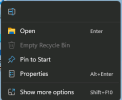
I don't want users to get lost, restore right click for windows 11.

1713879728173.png

I tried mounting the HKLM\default hive, it works for some registry keys (left alignment ..) but not for the right click and for the search bar in the taskbar (which I want to hide)
 
This one threw me for one heck of a loop. It turns out that some of the HKCU keys get "reset" even if you set them in the default profile. To combat this I created a runonce command under the default user registry that essentially resets these on the first login of every user after the first login. The runonce command runs under the users context so you can use it to modify things in HKCU. In my Task sequence I have a step that runs the below powershell script after mounting the default user profile hive.

Code:
if((Test-Path -LiteralPath "HKLM:\DEFAULT\Software\Microsoft\Windows\CurrentVersion\RunOnce") -ne $true) {  New-Item "HKLM:\DEFAULT\Software\Microsoft\Windows\CurrentVersion\RunOnce" -force -ea SilentlyContinue };
New-ItemProperty -LiteralPath 'HKLM:\DEFAULT\Software\Microsoft\Windows\CurrentVersion\RunOnce' -Name 'RestoreContextMenu' -Value 'reg add "HKCU\Software\Classes\CLSID\{86ca1aa0-34aa-4e8b-a509-50c905bae2a2}\InprocServer32" /f /ve' -PropertyType String -Force -ea SilentlyContinue;
New-ItemProperty -LiteralPath 'HKLM:\DEFAULT\Software\Microsoft\Windows\CurrentVersion\RunOnce' -Name 'HideSearchBar' -Value 'reg.exe add "HKCU\Software\Microsoft\Windows\CurrentVersion\Search" /f /v SearchboxTaskbarMode /t REG_DWORD /d 0' -PropertyType String -Force -ea SilentlyContinue;

Followed eventually by a step that unloads the default registry hive
 
Solution
Status
Not open for further replies.

Forum statistics

Threads
7,128
Messages
27,834
Members
18,142
Latest member
MateuszSie

Trending content

Back
Top